
Last updated: Monday 12 October 2026.
Comparing phone, SIM, broadband and energy deals usually means opening a dozen tabs, squinting at small print and trying to work out what you'll actually pay over two years. Squid AI is our free deals helper, built into every page of Switch. You tell it what you want in plain English, and it searches the live prices on our site and shows you the deals that fit. You don't need to sign up or download anything.
This guide shows you how to use it, step by step, with real screenshots taken on switchsquid.com. It also covers the shortcuts that save you typing, what happens to your chat when you close it, and what Squid AI can't do (yet).
If the button doesn't open the chat, tap the purple Squid AI chat bubble in the bottom corner of the page, or Ask Squid AI in the top menu.
What is Squid AI?
Squid AI is a chat assistant that sits on top of the deals we already list. When you ask it a question, it looks at the live products in our catalogue, from SIM-only plans and handset contracts to broadband packages, and answers using those real prices rather than guesses. It can also explain energy topics such as the Ofgem price cap and fixed tariffs, and point you to our energy comparison so you can see tariffs for your own postcode.
Think of it as the friend who already knows every deal on the site. You ask "what's the cheapest SIM with 30GB?" and it comes back with a short answer, the plans that match, and buttons that take you straight to the deal page.
It's honest about its limits too. Every chat shows the line "Squid AI can make mistakes, so check the deal page before you buy." Prices and stock change, so the retailer's own page is always the final word.
Squid AI at a glance
| Feature | What it does | How to use it |
|---|---|---|
| Plain-English search | Finds deals that match what you describe | Type a question, e.g. "unlimited SIM under £15" |
| Try asking chips | One-tap starter questions | Tap a suggestion under the greeting |
| Deal cards | Shows matching plans with price, data and upfront cost | Tap "See deal at…" to open the deal |
| / shortcuts | Quick commands such as /find, /compare, /sim, /broadband and /cheapest | Type / in the message box |
| @ picker | Picks a phone, network or retailer for you | Type @ in the message box |
| Energy help | Explains the price cap and fixed vs variable tariffs | Ask, then tap "Compare energy tariffs" |
| Chat stays open | Your conversation is still there if you close and reopen the panel | Tap "Ask Squid AI" again |
| New chat | Clears the conversation and starts fresh | Tap the pencil icon at the top of the panel |
How to use Squid AI, step by step
Step 1: Open Squid AI
Look for the Ask Squid AI button in the menu bar at the top of any page. On many pages you'll also see an Ask Squid prompt next to the deals. Tap it and the chat panel slides open in the corner of the screen.
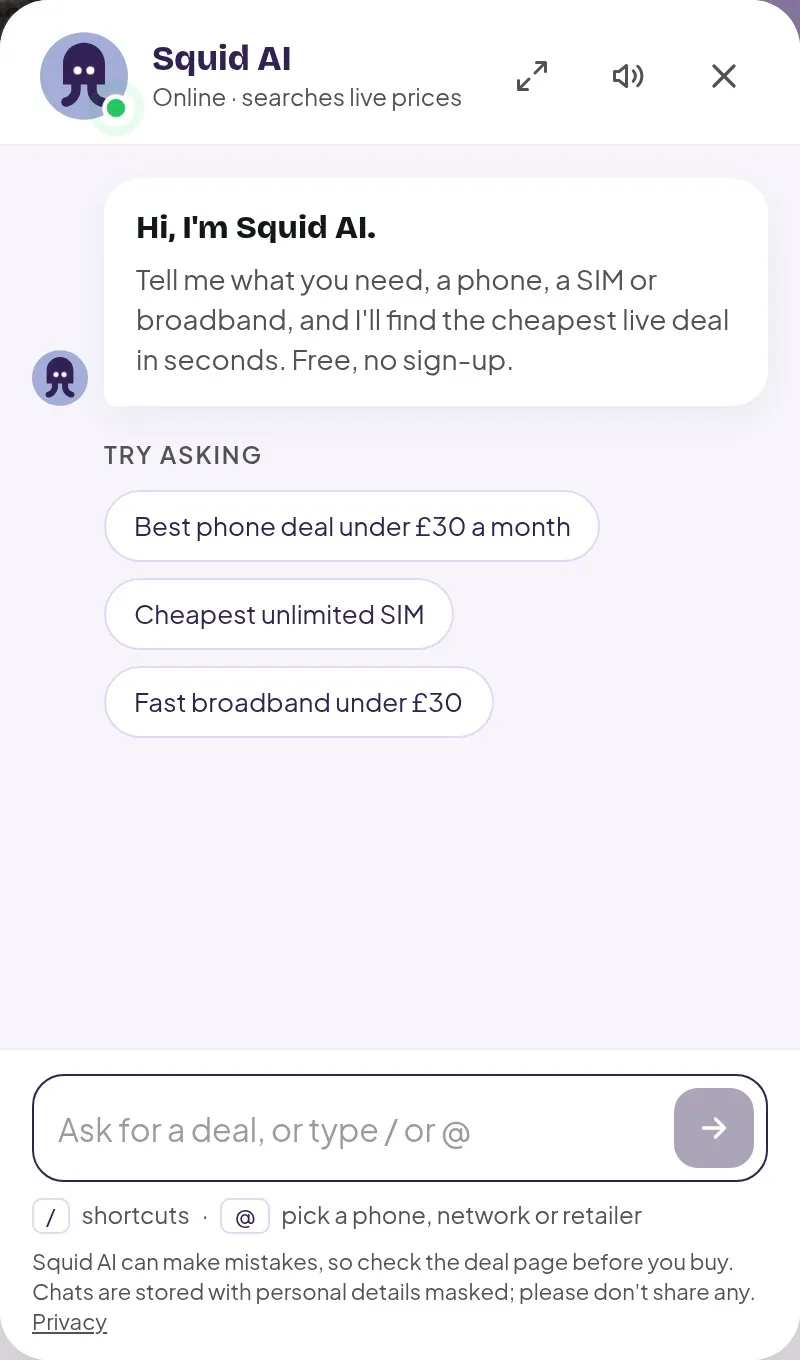
You'll see a short greeting and a few Try asking suggestions, such as "Best phone deal under £30 a month", "Cheapest unlimited SIM" and "Fast broadband under £30". Tap one if you just want to see what it can do.
Step 2: Ask your question in plain English
Type what you want into the box that says "Ask for a deal, or type / or @", then press the arrow or Enter. The more detail you give, the better the match. Useful things to mention are:
- how much data you need (for example 30GB, 100GB or unlimited)
- your monthly budget
- how much you're happy to pay upfront
- the network or phone you want, if you have one in mind
- the broadband speed you need
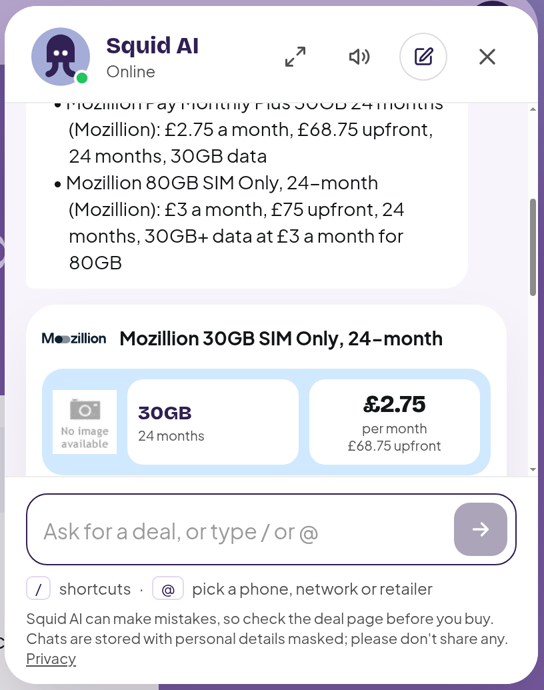
Notice that a good answer doesn't just quote the lowest monthly price. In the example above, Squid AI flags that the cheapest monthly plan has an upfront charge, so the total over the contract is higher than it first looks. That's the kind of detail that's easy to miss when you compare deals on your own.
Step 3: Save typing with / shortcuts and @
Type a forward slash / in the message box and a shortcuts menu pops up. Each shortcut shows an example, so you know what to type after it.
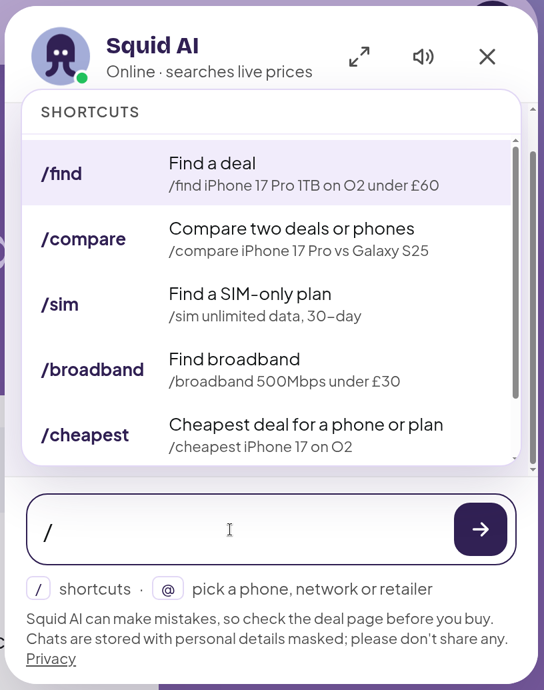
| Shortcut | What it does | Example |
|---|---|---|
| /find | Find a deal | /find iPhone 17 Pro 1TB on O2 under £60 |
| /compare | Compare two deals or phones | /compare iPhone 17 Pro vs Galaxy S25 |
| /sim | Find a SIM-only plan | /sim unlimited data, 30-day |
| /broadband | Find broadband | /broadband 500Mbps under £30 |
| /cheapest | Cheapest deal for a phone or plan | /cheapest iPhone 17 on O2 |
Type @ instead and Squid AI helps you pick a phone, network or retailer, so you don't have to remember exact model names.
Step 4: Open a deal from the cards
When Squid AI finds matching plans, it shows them as deal cards under its answer. Each card shows the provider, the data allowance, the monthly price and any upfront cost.
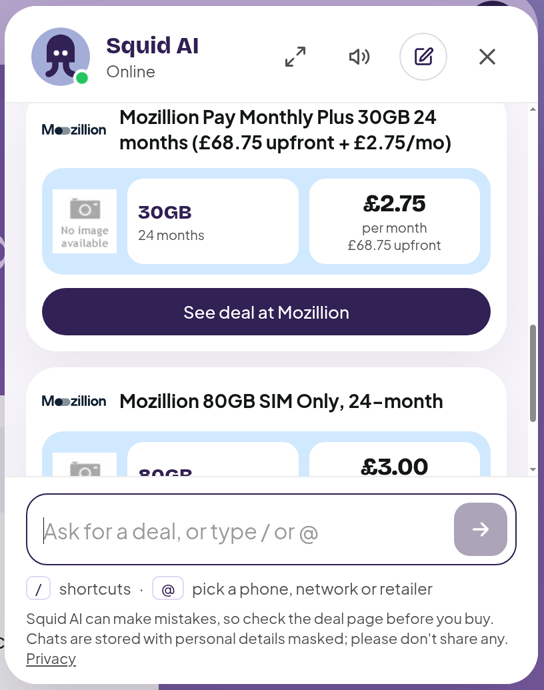
Tap See deal at… to go to the deal. Before you buy, check the price, contract length and upfront cost on the retailer's page match what you expected. We may earn a commission if you buy through our links, but that never changes the price you pay.
Step 5: Ask about energy
Squid AI can't switch your energy for you, but it's good at explaining things. Ask "should I fix my energy now?" or "what is the price cap?" and you'll get a plain answer, followed by a Compare energy tariffs button that takes you to our energy comparison, where you can see live tariffs for your postcode. Business owners can ask about business energy too, and Squid AI will point you to our business energy page.
Your chats: closing, reopening and starting again
Here's how your conversation behaves today:
- Close and come back: tap the X to close the panel whenever you like. When you tap Ask Squid AI again in the same browser session, your conversation is still there, so you can scroll back up to the deals you were looking at.
- Start fresh: tap the pencil icon at the top of the panel to start a new chat. The old conversation clears and you're back to the greeting screen shown in Step 1.
If you clear your browser data or switch device, the conversation won't follow you. If you've found a deal you like, the simplest thing is to open the deal page and bookmark it.
Tips for getting better answers
- Give a budget. "Under £20 a month" narrows things down far faster than "cheap".
- Mention upfront cost. If you don't want to pay anything upfront, say so.
- Ask follow-ups. "Any with more data?" or "what about on EE?" works, because Squid AI remembers what you've already said in the chat.
- Compare totals. Ask "what's the total over the contract?" to see the real cost.
- Check before you buy. Always open the deal page and confirm the details.
Privacy: what happens to what you type
Every chat shows a short note: "Chats are stored with personal details masked; please don't share any." We keep chats so we can improve answers and spot questions we should write guides about, and personal details are masked when they're stored. You never need to give your name, phone number, address or bank details to get an answer, so please don't type them in. You can read the full details on our privacy page.
What Squid AI can't do
- It can't buy, switch or cancel anything for you. You always finish on the provider's own site.
- It only knows the deals we list, so it won't cover every tariff in the UK.
- It can make mistakes. If an answer looks wrong, check the deal page or ask the question another way.
- It doesn't give financial advice. It helps you compare, and the choice is yours.
Try Squid AI: ask your first question
If the button doesn't open the chat, tap the purple Squid AI chat bubble in the bottom corner of the page, or Ask Squid AI in the top menu.
Frequently asked questions
Is Squid AI free?
Yes, Squid AI is completely free to use. You don't need an account or a sign-up. Just open the panel and start typing.
Are Squid AI's prices live?
Squid AI searches the deals currently listed on Switch, so its answers use the same prices you'd see on our deal pages. Retailers can change prices or run out of stock at any time. Always check the deal page before you buy.
Does Squid AI favour deals that pay you more?
No. We may earn a commission when you buy through our links, but that doesn't change the price you pay. Squid AI matches deals to what you asked for, such as data, budget and upfront cost.
Can I see my old chats?
Your current conversation stays in the panel when you close and reopen it in the same browser session. Starting a new chat with the pencil icon clears it. Your chats don't currently follow you to a different browser or device.
What are the / and @ shortcuts?
Typing / opens a menu of quick commands such as /find, /compare, /sim, /broadband and /cheapest. Typing @ helps you pick a phone, network or retailer. Both save you typing and help Squid AI understand exactly what you mean.
Can Squid AI help with energy bills?
Yes, it can explain the Ofgem price cap, fixed and variable tariffs and when fixing might make sense. It then links you to our energy comparison so you can see tariffs for your postcode. Business users are pointed to our business energy page.
Is it safe to type personal details?
Please don't share personal details in the chat, because Squid AI doesn't need them to find deals. Chats are stored with personal details masked. You can read more on our privacy page.
Questions about switching? Ask Squid AI
Squid AI explains the price cap, tariffs and switching in plain English, then points you to the comparison.
- Save energy and moneyLearn when a fixed deal beats the price cap.
- Save timeAnswers in seconds, no forms or sign-up.
- Plain answersNo jargon, no pressure, free to use.