The fastest way to boost your Wi-Fi throughout your home is to combine better router placement with a dual band Wi-Fi extender, positioned between your router and the room that struggles. This fixes coverage in almost every UK home, from Victorian terraces with solid brick walls to three storey new builds where the router sits by the front door. This guide explains what a Wi-Fi extender does, how to set one up, where to place it, and when a mesh system or a broadband upgrade solves the problem instead.
What Is a Wi-Fi Extender and How Does It Work?
A Wi-Fi extender is a small device that picks up your router's wireless signal, amplifies it, and rebroadcasts it into rooms the router cannot reach on its own. People also call it a Wi-Fi booster or a Wi-Fi repeater. All three terms describe the same category of product, so shop listings and search results use them interchangeably.
The device works as a relay. It receives your router's signal over a wireless link, known as the backhaul, then creates a second access point nearby. Devices in that room connect to the extender instead of the router, and the extender forwards their traffic back over the same wireless link. Most plug straight into a mains socket, and setup takes under 5 minutes with WPS.
Why Your Wi-Fi Doesn't Reach Every Room
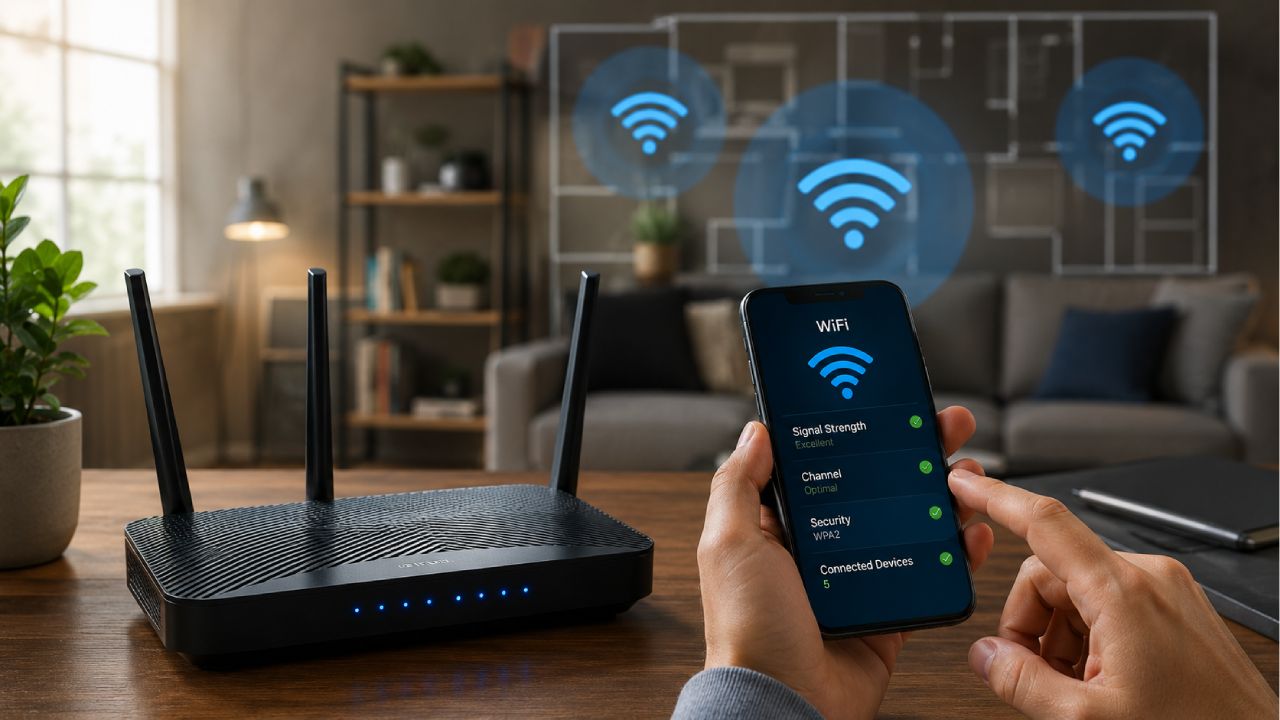
Three factors cause most Wi-Fi dead zones: distance from the router, physical obstructions, and interference from other devices. UK housing stock makes all three worse than average, which is why so many households search for ways to boost their Wi-Fi signal in specific rooms rather than the whole property.
Distance and Building Materials
Brick, concrete and metal block Wi-Fi signal far more than plasterboard blocks it. Solid brick walls in Victorian terraces, concrete floors in purpose-built flats, and metal radiators all weaken the signal as it travels through your home. A router that covers 30 metres in open space might only reach 10 metres through two brick walls.
Interference and Network Congestion
Microwave ovens, baby monitors and cordless phones share the same 2.4GHz frequency as your Wi-Fi. In blocks of flats and dense terraces, dozens of neighbouring networks compete for the same channels, which slows every device trying to connect, even ones sitting close to the router.
5 Ways to Boost Your Wi-Fi Signal Before You Buy Anything
Move your router to a central, elevated spot, away from walls and metal objects, and restart it every 4 to 6 weeks. Try these 5 steps first, since they cost nothing and solve the problem in many UK homes without any extra hardware.
Move your router to a central, open location, ideally on a shelf rather than the floor.
Keep it 1 to 2 metres away from microwaves, baby monitors and cordless phone base stations.
Use the 5GHz band for devices in the same room as the router, and reserve 2.4GHz for rooms further away, since it travels through walls more easily.
Update your router's firmware, since manufacturers regularly patch performance and security issues.
Restart your router every 4 to 6 weeks to clear its memory and reconnect to the least congested channel.
If these 5 steps don't fix your dead zones, a Wi-Fi extender or mesh system usually will.
Types of Wi-Fi Extenders and Boosters
3 main types of Wi-Fi extender exist, and each suits a different kind of dead zone.
Plug in extenders connect wirelessly to your router and cost £15 to £50. They suit covering 1 or 2 extra rooms in a small or medium home.
Desktop extenders use external antennas for a stronger signal and cost £40 to £100. They suit larger rooms, a converted loft, or a garden office.
Access point extenders connect to your router by Ethernet cable rather than wirelessly, which removes the wireless speed penalty entirely. They cost £50 to £150 and need a cable run.
Some broadband providers supply their own branded units, which only work with that provider's router. Third party extenders and wireless internet boosters from brands such as TP-Link and Netgear work with any UK router, giving you more flexibility if you switch broadband deals later.

Powerline Adapters: An Alternative to a Wi-Fi Extender
Powerline adapters send your internet signal through your home's electrical wiring instead of over the air. One unit plugs in near your router, a second plugs in where you need coverage, and a cable joins each adapter to a router or device. They cost £30 to £70 for a decent kit and work well against very thick stone or solid brick that defeats a standard wireless internet booster. Performance depends on your wiring, so older properties with circuits from before 1990 may see limited benefit.
Boosting Wi-Fi Signal in Older and Larger UK Homes
Period properties need a different approach to boost Wi-Fi signal reliably. Listed buildings and conversions with party walls often have thick original brickwork, multiple small rooms, and wiring that limits where you can plug in a booster. In these homes, an access point extender wired by Ethernet usually outperforms a wireless one, since it avoids the backhaul signal loss entirely.
Larger homes with 4 or more bedrooms or an extension built at an angle to the main house often create more than one dead zone. Rather than buying a single powerful extender, most households get better, more even coverage from 2 modest units or a mesh kit than from 1 expensive one placed in the middle.
Common Wi-Fi Extender Mistakes to Avoid
Placing the extender in the dead zone itself instead of halfway between the router and the dead zone.
Buying a single band extender for a large home, which halves throughput and creates a new bottleneck.
Leaving the extender's firmware unpatched, which slows performance and leaves a security gap over time.
Giving the extender a different network name to the router, which forces devices to switch manually between the two.
Assuming 1 unit will cover a whole 4 bedroom house, when 2 units or a mesh system usually perform better.
Wi-Fi Extender vs Mesh Wi-Fi System
A Wi-Fi extender works best for 1 or 2 dead zones in a small to medium home. A mesh system works best for larger homes with 4 or more bedrooms or multiple floors.
Feature | Wi-Fi Extender | Mesh Wi-Fi System |
Typical cost | £15 to £100 | £60 to £250+ |
Setup | Single device, WPS pairing | 2 to 3 units, app based |
Network name | Sometimes a separate network | One seamless network |
Best for | 1 to 2 dead zones | Whole home coverage, large or multi storey properties |
Mesh systems boost your Wi-Fi signal without the speed halving problem that affects single band extenders, because each node uses a dedicated wireless channel to talk to the others. That consistency comes at a higher price, so a single dual band extender remains the better value choice for smaller homes.
How to Set Up a Wi-Fi Booster in 5 Steps
Plug the extender in near your router, pair it using the WPS button, then move it to its permanent position.
Plug the extender into a mains socket close to your router for initial setup.
Press the WPS button on your router, then the WPS button on the extender within 2 minutes.
Wait for the indicator light to confirm a successful connection.
Set the extender's network name and password to match your router, so devices switch between them automatically.
Move the extender to its permanent position and confirm the signal light stays green.
If your router or extender doesn't support WPS, connect to the extender's temporary network from your phone or laptop and complete setup through its browser based control panel instead.
Where to Place Your Wi-Fi Extender for the Strongest Signal
Position your extender roughly halfway between your router and the dead zone, in a spot where the router's signal is still strong.
Placing it too close to the dead zone is the most common mistake, since the extender can only rebroadcast the signal it receives. If that signal is already weak, the extender spreads a weak signal further rather than fixing it.
Most extenders show a coloured light to confirm placement. Green means a strong connection, amber means marginal, and red means too far from the router. For multi storey homes, a landing or the top of the stairs usually works better than inside a closed room, since walls and doors block the signal on both sides of the extender.
How Much Does a Wi-Fi Booster Cost in the UK?
Most Wi-Fi boosters cost between £15 and £100, and mesh kits start around £60 and rise to £250 or more.
Type | Price Range |
Single band plug in extender | £15 to £30 |
Dual band extender | £30 to £60 |
Wi-Fi 6 extender with Ethernet port | £60 to £100 |
Mesh starter kit (2 units) | £60 to £150 |
Premium mesh system (3+ units) | £150 to £250+ |
Dual band extenders offer the best value for most homes, since they avoid the sharp speed drop that affects cheaper single band models.
When a Wi-Fi Booster Won't Fix Slow Internet
No, a Wi-Fi booster will not fix slow internet if the problem is your broadband speed rather than your Wi-Fi coverage.
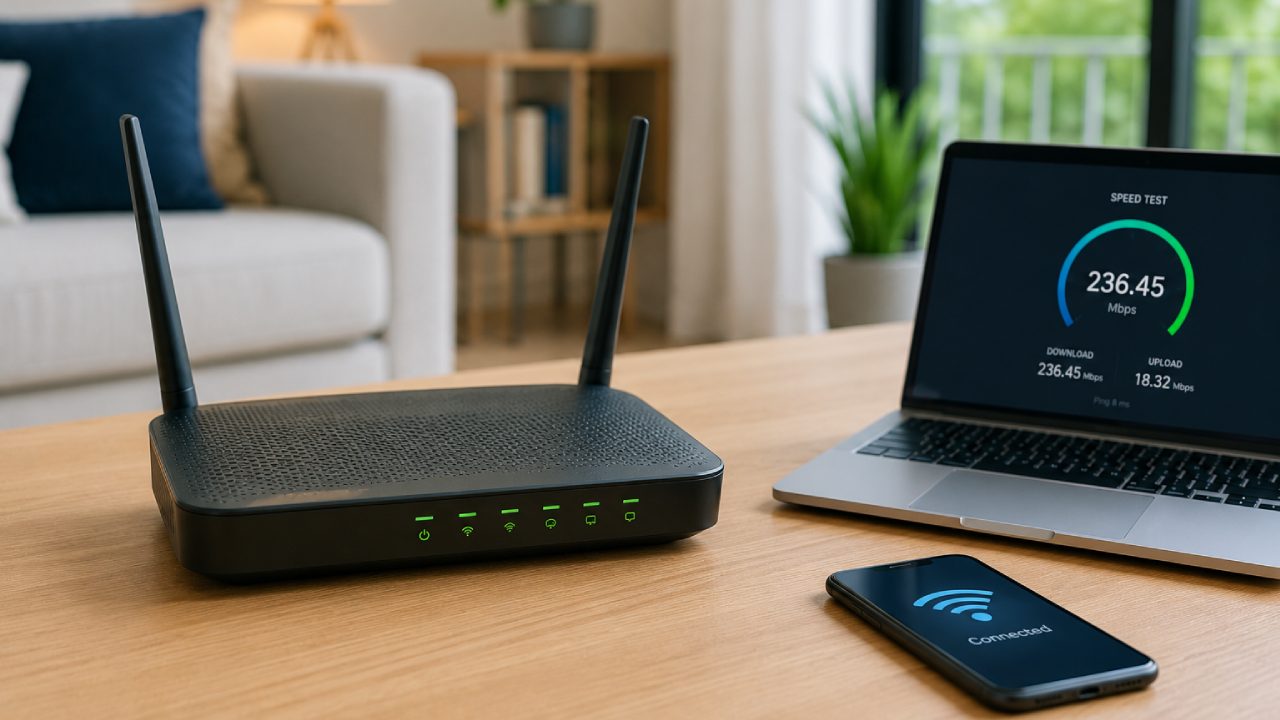
Run a free speed test standing next to your router first. If your speed there matches what you're paying for, distance and walls are the cause, and an extender will help. If your speed is low even next to the router, no extender fixes that, since the fault sits with your broadband line or package.
In that case, compare current broadband deals to see whether a faster package is available at your address, or read our guide on how to switch broadband provider if your current contract has ended.
Frequently Asked Questions
Do Wi-Fi extenders really work?
Yes. Wi-Fi extenders work by rebroadcasting your router's signal into rooms it cannot reach on its own, and they fix the majority of home dead zones when placed correctly.
Do Wi-Fi boosters slow down your internet?
Yes, single band extenders can reduce speed by up to 50%, since they use the same radio to receive and resend data. Dual band extenders reduce this penalty significantly by splitting the two jobs across separate frequency bands.
How many Wi-Fi extenders do I need for my house?
Most homes need 1 extender to cover 1 or 2 dead zones. Larger homes with 4 or more bedrooms, or 3 or more floors, often need 2 to 3 units or a mesh system instead.
Is a mesh Wi-Fi system better than an extender?
Yes, for larger or multi storey homes. Mesh systems maintain one seamless network and avoid the speed halving issue that affects single band extenders, though they cost more upfront.
What is the difference between a Wi-Fi booster and a Wi-Fi repeater?
None. Wi-Fi booster, extender and repeater all describe the same type of device, one that receives your router's signal and rebroadcasts it to extend coverage into weak spots.
Can I use a Wi-Fi extender with any broadband provider?
Yes. Third-party extenders work with any UK router, regardless of which broadband provider supplied it. Provider-branded units usually work best with that provider's own hardware.
Do I need a Wi-Fi extender if I have Wi-Fi 6?
No, not always. A modern Wi-Fi 6 router already broadcasts a stronger, more efficient signal, but it still can't overcome thick brick walls or long distances on its own, so an extender still helps in larger or oddly shaped homes.
Whichever method you choose, a well placed extender, a mesh system, or a few free router tweaks will boost your Wi-Fi signal throughout your home without professional help.
For more ways to get the most from your connection, browse our full library of broadband guides.