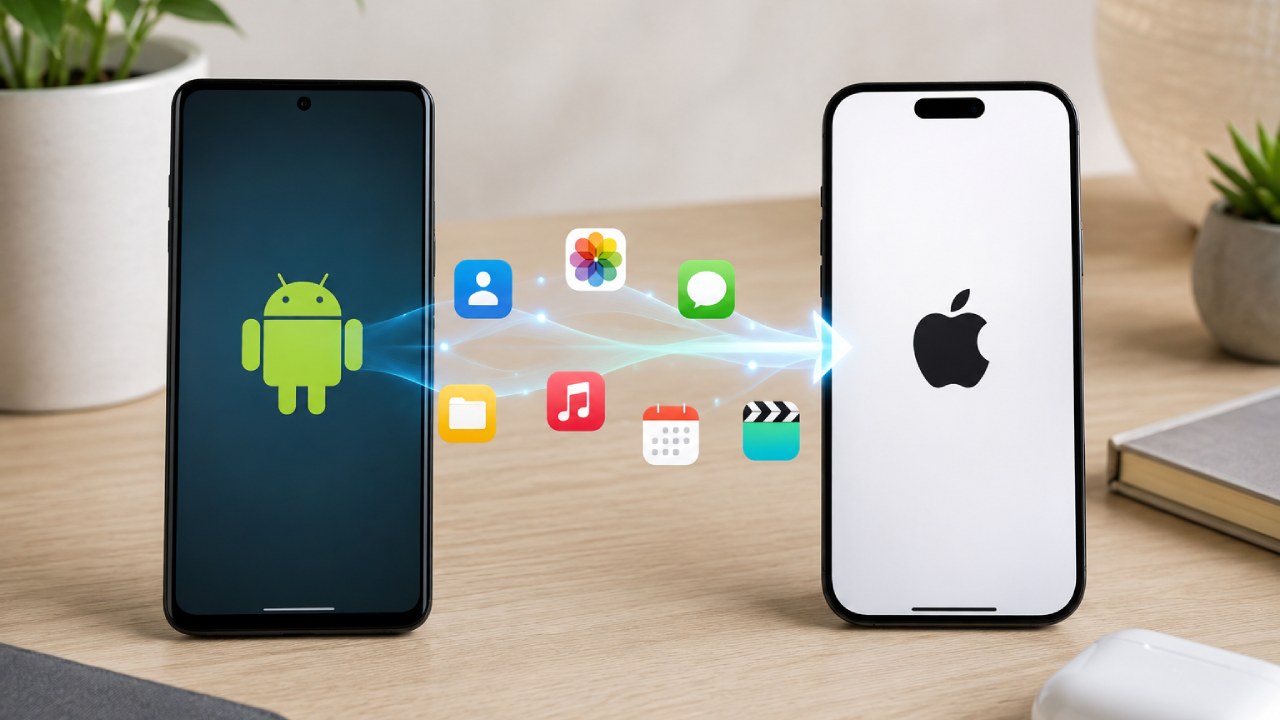
Yes, you can transfer data from Android to iPhone, and the fastest way to do it is with Apple's free Move to iOS app. The easiest way how to transfer data from android to iphone is to place both phones next to each other, open Move to iOS on your Android device, and follow the on screen prompts. The whole process moves your contacts, messages, photos, calendars, and more in one go, and it usually takes between 15 minutes and 2 hours depending on how much data you have. This guide covers every method available in 2026, including the newer no app option for recent Android phones, plus WhatsApp, eSIM, and the fixes for common transfer problems.
What You Need Before You Transfer Data from Android to iPhone
Check these 5 things first, because a missed step is the top cause of a failed transfer.
Both devices connected to power. The transfer can take hours, and a dead battery stops it instantly.
A strong Wi-Fi signal on your Android phone. Turn off mobile data during setup to force a stable connection.
Enough free storage on your iPhone. Check available space before you start, since Apple recommends your new device has more free space than the total size of the content you are moving.
The latest version of Chrome, if you want your bookmarks to carry over.
Your Apple ID ready, or the option to create one during setup.
How to Transfer Data from Android to iPhone Using the Move to iOS App
Move to iOS is Apple's official migration app, and it remains the most complete way to move to ios data in a single session. Install it from Google Play before you switch on your new iPhone, then follow these 7 steps.
Turn on your new iPhone and place it near your Android phone.
On the Apps & Data screen, tap Set Up Without Another Device, then continue until you reach Move Data from Android.
On your Android phone, open the Move to iOS app, tap Continue, and accept the terms.
Enter the 6 or 10 digit code that appears on your iPhone into the Android app.
Connect to the temporary Wi-Fi network your iPhone creates when prompted.
Select the content to move, such as contacts, message history, photos, calendars, and WhatsApp, then tap Continue.
Leave both phones alone, plugged in and near each other, until the loading bar on your iPhone finishes.
Here is what actually transfers: contacts, SMS and message history, camera photos and videos, photo albums, calendars, email accounts, web bookmarks, accessibility and display settings, call history, Voice Memos, and WhatsApp messages and media. Matching free apps also transfer if they exist on both the Google Play Store and the App Store.
How to Move Android Data to iPhone Without an App
If your Android phone runs Android 17 or later, you can skip the Move to iOS app entirely. To move data from android to iphone without an app, use your iPhone's built in QR transfer during setup.
On your iPhone, go to the Transfer Your Apps & Data screen and tap From Android.
Tap Transfer Without App, then place your Android phone next to your iPhone.
Use your Android camera to scan the QR code shown on your iPhone.
On your Android phone, choose the data to send, such as photos, contacts, calendars, call history, and messages.
If you also want to move your number, select your eSIM and tap Transfer.
Tap Continue on both devices once the transfer completes.
Check with your Android manufacturer if this option does not appear, since support depends on the exact model and Android build.
How to Transfer Your eSIM from Android to iPhone
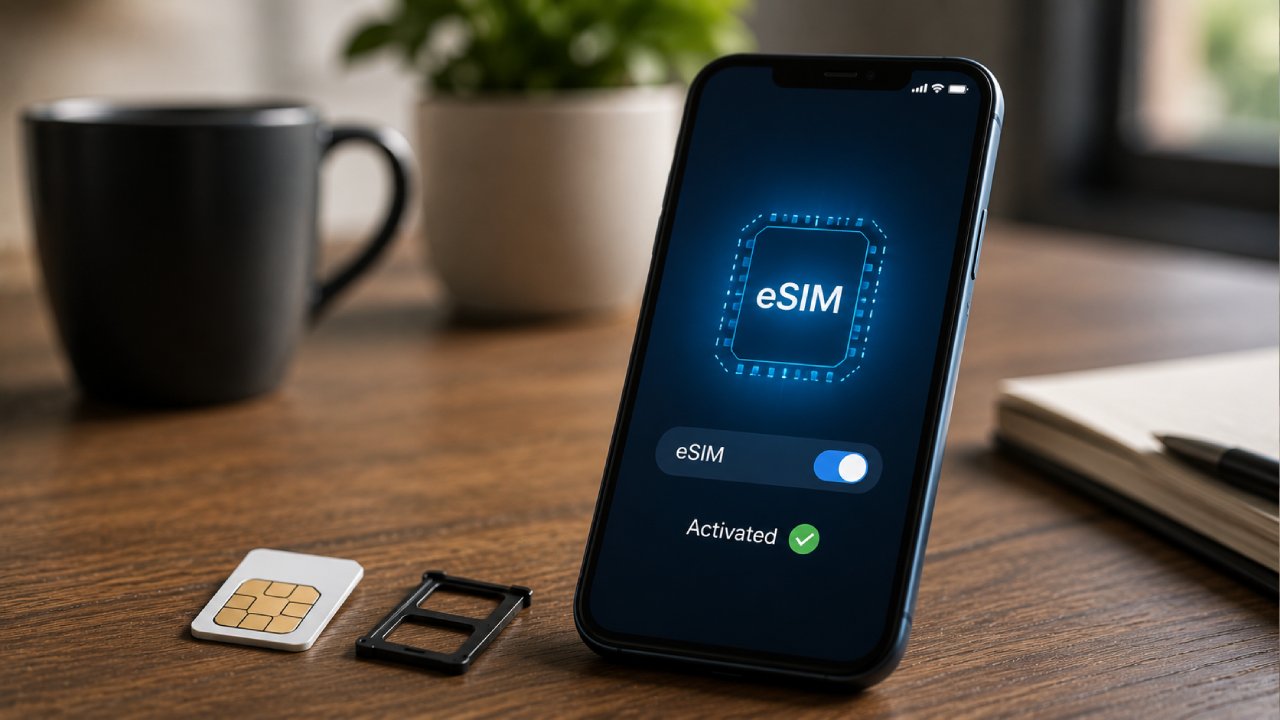
Yes, you can transfer your eSIM and keep your existing number active on your new iPhone. During setup, select your number on your Android device and tap Transfer when the option appears in either the Move to iOS flow or the no app QR transfer. Some UK networks finish eSIM activation through their own app or website instead, so keep your PAC or STAC code handy in case you need it. If you are choosing a new plan alongside your new phone, compare eSIM only deals before you activate, since pricing and data allowances vary widely between providers.
How to Move WhatsApp from Android to iPhone
WhatsApp transfers automatically when you use either the Move to iOS app or the no app QR method, as long as you select it during the content picker step. Open WhatsApp on your Android phone first and confirm you are on the latest version, because an outdated build can block the chat history transfer. Keep both phones connected to the same Wi-Fi network and do not open WhatsApp on your new iPhone until the main transfer finishes. Once setup completes, open WhatsApp on your iPhone and verify your phone number to restore your chats, photos, and voice notes.
How to Transfer Photos and Contacts from Android to iPhone Manually
If you prefer not to use Move to iOS, or your phones are not near each other, transfer content manually with your existing cloud accounts.

Transfer contacts with your Google Account
On your Android phone, go to Settings, then Accounts, then Google, and turn on Contacts sync.
On your iPhone, go to Settings, then Contacts (or Accounts), tap Add Account, and choose Google.
Sign in and enable Contacts. Your list appears within a few minutes.
Transfer photos with Google Photos
Install Google Photos from the App Store on your iPhone and sign in with the same account you use on Android.
Turn on backup on your Android phone, then download the photos you want on your iPhone, or leave them in the Google Photos app.
This route works well for older Android phones, dual SIM swaps, or when you only need contacts and photos rather than a full data transfer.
Move to iOS or Manual Transfer: Which Should You Use
Choose Move to iOS when you want everything moved in one session, including messages, call history, and WhatsApp, and both phones can sit next to each other for up to a few hours. Choose the manual Google method when you only need contacts and photos, your phones are in different locations, or your Android device is too old to run Move to iOS reliably. Samsung, Google Pixel, and OnePlus owners typically get the smoothest results with Move to iOS, since these brands ship with fewer manufacturer restrictions on cross platform transfers than some budget Android models.
What Does Not Transfer Automatically
3 content types need a manual move after setup:
Music, books, and PDFs bought outside Apple's ecosystem
Paid apps that only exist on Google Play
Files stored in Android only cloud services without an iOS app
Download free App Store equivalents from the App Store once setup finishes, and move purchased media through the original service's own app or website.
How Long Does It Take to Transfer Data from Android to iPhone
Transfer time scales with data volume and connection speed. Use this table as a guide.
Data Size | Estimated Time | Best Connection |
Under 5 GB (2 kg of photos worth) | 15 to 30 minutes | Direct USB C cable |
5 to 50 GB | 30 minutes to 2 hours | Wi-Fi at 100 Mbps or faster |
Over 50 GB (128 GB+ phones) | 2 to 6 hours | Wi-Fi plus mains power |
How to Fix Common Android to iPhone Transfer Problems
Move to iOS app freezes or crashes
Force close the app on your Android phone, restart both devices, and turn off mobile data before you try again. Forget any saved Wi-Fi networks on your Android phone under Settings, then Wi-Fi, since a network with a captive portal can block the connection.
Six digit code never appears
Restart both devices and keep them within 30 cm of each other. If the code still fails to appear, erase your iPhone and restart setup from scratch, since a partially configured iPhone cannot pair with Move to iOS.
Transfer stops partway through
Keep both screens on and avoid taking calls or opening other apps until the loading bar finishes. Any interruption on the Android side cancels the entire transfer, not just the item in progress.
iPhone shows full storage after an incomplete transfer
Erase your iPhone and start again, and confirm your Android content fits within your iPhone's free space first.
Messages or iMessage do not work after switching
Sign out of iMessage and FaceTime on your old Android number if it was previously linked to another iPhone, then sign back in on your new iPhone with your Apple ID. Text messages from friends still on Android arrive as normal SMS once your new SIM or eSIM is active.
Choosing the Right iPhone Plan After You Switch
Once your data lands on your new iPhone, check whether your current mobile plan still makes sense. Compare SIM only deals if you kept your old number, or browse the latest mobile phone deals if you are due an upgrade. If your broadband speed made the Wi-Fi transfer slower than it should have been, run a broadband speed comparison to see whether a faster package is available at your address.
Frequently Asked Questions
Can you transfer data from Android to iPhone without losing anything?
Yes, Move to iOS transfers contacts, messages, photos, videos, calendars, and WhatsApp without deleting anything from your Android phone. Your original data stays on the Android device, so you keep a backup until you are certain the new iPhone has everything.
Do I need Wi-Fi to transfer data from Android to iPhone?
Yes, both the Move to iOS app and the no app QR method require a Wi-Fi connection between the two phones. A direct USB C cable also works with some iPhone and Android combinations and moves large photo libraries faster than Wi-Fi.
Can I use Move to iOS after I have already set up my iPhone?
No, Move to iOS only works during initial setup. If you already finished setup, erase your iPhone under Settings, then General, then Transfer or Reset iPhone, and start the process again, or move content manually through Google Photos and Google Contacts instead.
How do I transfer WhatsApp from Samsung to iPhone specifically?
Update WhatsApp on your Samsung phone, select WhatsApp in the Move to iOS content picker, and keep both phones on the same Wi-Fi network until the transfer finishes. Verify your number in WhatsApp on the iPhone afterward to restore your full chat history.
Will my apps transfer from Android to iPhone?
Partially. Free apps that exist on both the Google Play Store and the App Store transfer automatically as suggestions you can download. Paid apps, Android exclusive apps, and app data such as game progress do not transfer and need a manual reinstall.
Can you transfer data from Android to iPhone after setup is already complete?
Yes, but only through manual methods rather than Move to iOS. Use Google Photos for images, a Google Account sync for contacts, and each app's own backup and restore feature for chat history and documents.
What is the difference between Move to iOS and the no app transfer method?
Move to iOS is an Android app you install before switching on your new iPhone, while the no app method uses a QR code scan built directly into iOS setup on Android 17 and later. Both move the same core content, but the no app method skips the Google Play download step entirely.
.jpg)