
.jpg)
You transfer contacts to a new phone through your Google Account, a SIM (Subscriber Identity Module) card, or a manufacturer switch app. Each method moves your contacts in under 10 minutes. This guide covers how to transfer contacts to new phone setups for Android to Android, Android to iPhone, and iPhone to Android, plus fixes for missing contacts in phone storage after a transfer.
Pick a new handset first if you haven't already. Compare the latest models on our mobile phone deals page before you start moving contacts across.
How to Transfer Contacts to New Phone: 3 Main Methods
To transfer contacts to new phone, sync through Google, export to a SIM card, or use a manufacturer switch app such as Samsung Smart Switch or Apple's Move to iOS. Google sync works across Android and iPhone. SIM export works for Android to Android transfer contacts jobs, but not on iPhone models without a physical SIM tray. Switch apps handle Android to Android and Android to iPhone moves, including photos, messages and calendar entries in one session.
Method | Works Between | Transfers Photos & Messages Too |
Google Account sync | Android to Android, Android to iPhone | No, contacts only |
SIM card export | Android to Android, Android to iPhone (with SIM tray) | No, names and numbers only |
Switch app (Smart Switch, Move to iOS, Switch to Android) | Android to Android, Android to iPhone, iPhone to Android | Yes |
vCard file | Android to iPhone, iPhone to Android | No, contacts only |
How to Transfer Contacts from Android to Android
To transfer contacts from Android to Android, sign into the same Google Account on both phones and turn on contact sync. Three methods handle this move: Google Account sync, SIM card export, and manufacturer switch apps.
Google Account Sync (Android to Android)
Turn on Contacts sync in your old phone's settings, then sign into the same Google Account on your new phone. This copies contacts from Android to Android automatically, without cables.
1. Open Settings > Accounts > Google on your old Android phone.
2. Tap your Google Account, then turn on Contacts sync.
3. Wait 2 to 3 minutes for contacts to upload.
4. Sign in with the same Google Account during setup on your new Android phone.
5. Contacts appear in your Contacts app within minutes.
This method migrates contacts from Android to Android with no ongoing effort, since new contacts saved on either phone sync to both automatically.
Save Contacts to SIM (Android to Android)
Export your contacts to your SIM card for an offline transfer that needs no Google Account.
6. Open the Contacts app on your old phone.
7. Tap the menu icon, then select Import/Export.
8. Choose Export to SIM card and confirm.
9. Remove the SIM and insert it into your new Android phone.
10. Open Contacts on the new phone, tap Import/Export, then Import from SIM card.
A standard SIM card stores 250 to 500 contacts, or roughly 32 KB (kilobytes) of data, and saves names and numbers only, not photos or email addresses.
Manufacturer Switch Apps (Android to Android)
Samsung, Google and other Android brands include a switch app that copies contacts, apps, photos and settings in one session.
11. Install Smart Switch (Samsung) or Google's Switch app on your new phone.
12. Connect both phones by cable or Wi-Fi Direct.
13. Select Contacts from the content list.
14. Tap Transfer and wait for the process to finish.
Choose this method for a full phone contacts from Android to Android move when you also want messages, apps and photos copied at the same time.
How to Transfer Contacts from Android to iPhone
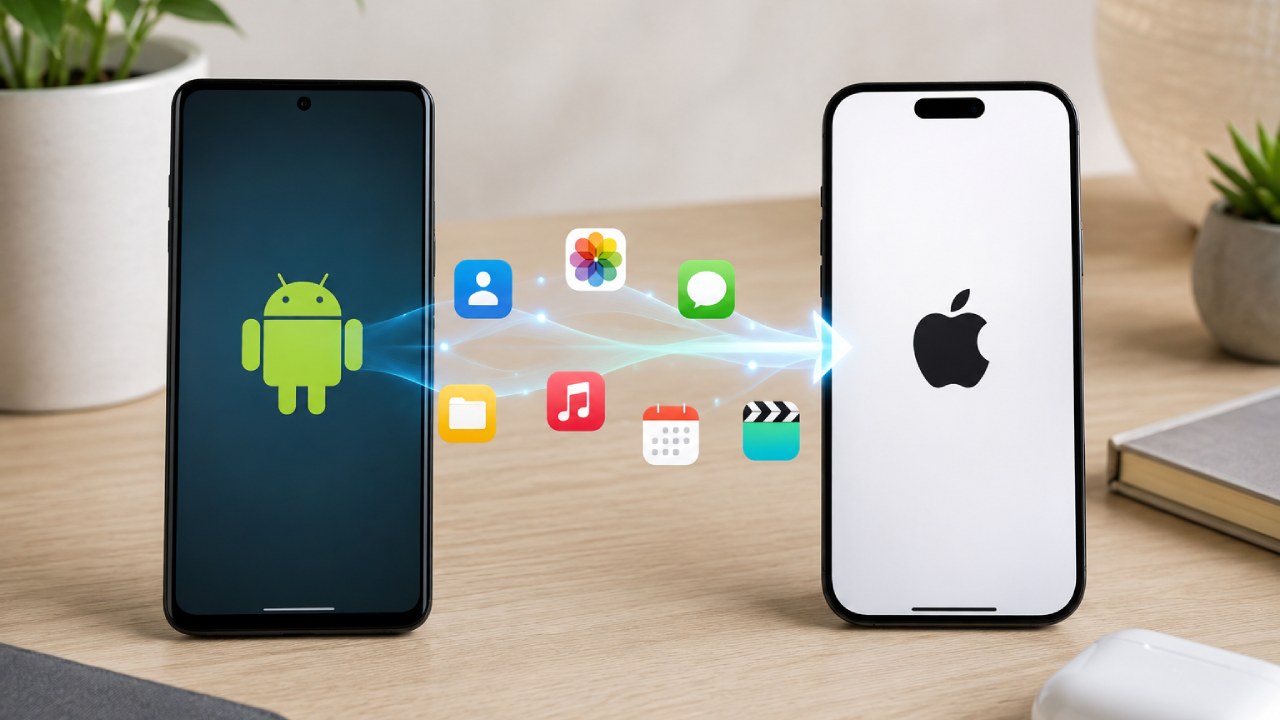
To transfer contacts from Android to iPhone, use Apple's Move to iOS app during setup, or sync through your Google Account once your iPhone is already running.
Move to iOS App (Android to iPhone)
Move to iOS transfers contacts, messages, photos and calendar entries the moment you set up a new iPhone.
15. Install Move to iOS from the Google Play Store on your Android phone.
16. Start your new iPhone and reach the Apps & Data screen.
17. Select Move Data from Android.
18. Enter the code your iPhone displays into the Move to iOS app.
19. Choose Contacts from the transfer list, then tap Continue.
Move to iOS only runs during initial iPhone setup. Use the Google Account method below if your iPhone is already set up.
Google Account Method (Android to iPhone)
Add your Google Account to your iPhone's Contacts settings to copy contacts from Android to iPhone without a cable.
20. Confirm Contacts sync is on under Settings > Accounts > Google on your Android phone.
21. Open Settings > Contacts > Accounts > Add Account on your iPhone.
22. Select Google and sign in with the same account.
23. Turn on Contacts for that account.
24. Your Android contacts appear in the iPhone Contacts app within a minute.
This is the fastest way to put contacts from Android to iPhone if you already use Gmail or another Google service on both devices.
vCard File Method (Android to iPhone)
Export your contacts as a vCard (Virtual Contact File) and email it to yourself for a one-time transfer without linking accounts.
25. Open Contacts on your Android phone, tap the menu, then Export.
26. Save the file to internal storage as a .vcf file.
27. Share the file to your own email address.
28. Open that email on your iPhone and download the attachment.
29. Tap the file, then select Add All Contacts.
This method suits a single transfer contacts from Android to iPhone job, without setting up ongoing sync between accounts.
How to Transfer Contacts from iPhone to Android
To transfer contacts from iPhone to Android, use Google's Switch to Android app, or sync your iCloud contacts to a Google Account first.
30. Turn on Contacts under Settings > [Your Name] > iCloud on your iPhone.
31. Sign into icloud.com on a computer.
32. Open Contacts, select all, then export as vCard.
33. Import the vCard file into Google Contacts at contacts.google.com.
34. Sign into that same Google Account on your new Android phone.
Google's Switch to Android app copies contacts, photos and messages directly between an iPhone and a new Android phone over a cable, which skips the iCloud export step entirely.
How to Transfer Your Phone Number to a New Phone
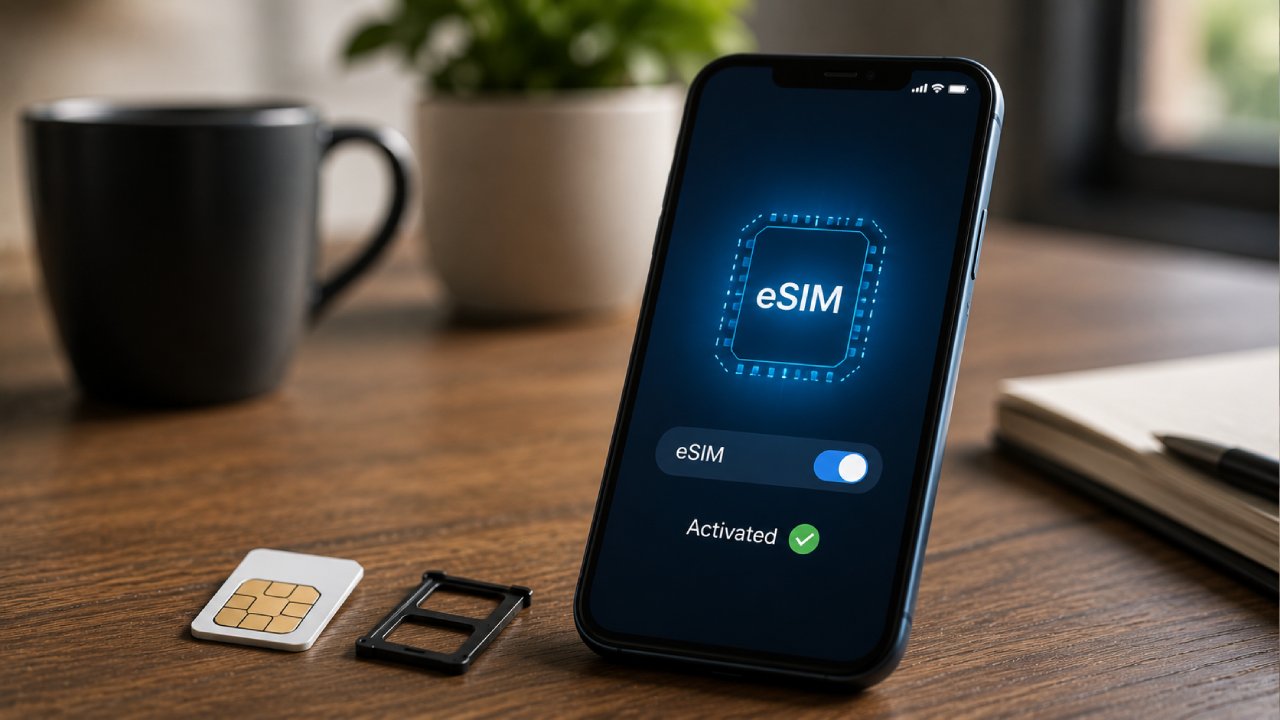
Move your phone number to a new phone by inserting your existing SIM card or activating an eSIM (embedded SIM) through your network provider.
Contact your network provider for a free replacement SIM before you transfer contacts if your new phone uses a different SIM size or eSIM only.
35. Check your new phone's SIM type: Nano-SIM, Micro-SIM or eSIM.
36. Request a replacement SIM from your provider if the size differs.
37. Insert the new SIM, or scan the eSIM QR (Quick Response) code your provider sends.
38. Wait 5 to 30 minutes for network registration to complete.
Compare current SIM-only deals on Switch if your existing plan doesn't support eSIM on your new device.
Common Contacts Transfer Problems and How to Fix Them
Missing contacts after a transfer usually come from contacts stored locally on your old phone rather than synced to your Google Account or iCloud. Export those local contacts as a vCard first, then repeat the transfer.
Fix duplicate contacts by opening your Contacts app settings and selecting Merge Duplicates, available on both Android and iPhone.
Fix missing photos on transferred contacts by re-syncing through Google Contacts, since SIM and some vCard transfers save names and numbers only.
Fix a stuck transfer by restarting both phones, confirming Wi-Fi Direct or Bluetooth is on, and reducing the distance between devices to under 1 metre (39 inches).
Final Word on Moving Your Contacts
Choosing the right method to transfer contacts to new phone setups depends on your old and new device. Google Account sync covers most Android to Android and Android to iPhone moves in minutes. SIM export and vCard files work best for one-time, offline transfers, and switch apps such as Smart Switch, Move to iOS and Switch to Android suit a full move that includes photos and messages.
Read Apple's official setup guidance for Move to iOS, or Google's help centre for syncing Google Contacts, for further device-specific detail.
FAQs
Can I transfer contacts to a new phone without a SIM card?
Yes, Google Account sync and manufacturer switch apps transfer contacts to a new phone without a SIM card, using Wi-Fi or a data connection instead.
Does transferring contacts also move my text messages?
No, contact sync alone does not move text messages. Use Move to iOS, Smart Switch or Switch to Android to copy messages along with contacts.
How to transfer contacts from Android to iPhone without a computer?
Move to iOS and the Google Account method transfer contacts from Android to iPhone directly between the two phones, without a computer.
Will transferring contacts delete them from my old phone?
No, transferring contacts copies them to the new phone and leaves the originals untouched on your old device.
How many contacts can a SIM card store?
Most SIM cards store 250 to 500 contacts, depending on the card's storage size, with names and numbers only.
Can I transfer contacts between an iPhone and an Android phone in both directions?
Yes, Google's Switch to Android app and the Google Contacts sync method work in both directions, covering iPhone to Android and Android to iPhone transfers.
Why did some of my contacts not transfer to my new phone?
Contacts saved only to your old phone's internal storage, rather than your Google Account or SIM card, do not transfer automatically. Export those contacts as a vCard first, then import the file on your new phone.
.jpg)